
The Map and Workflows tabs
The Map and Workflows tabs are two views of the same structure. Map is the overview. Workflows is the detail. Together they hold the full shape of your Workflow Map.
Map: the Workflow Index
Map is the landing tab when you open a business. It holds the Workflow Index: every workflow in your map at a glance.
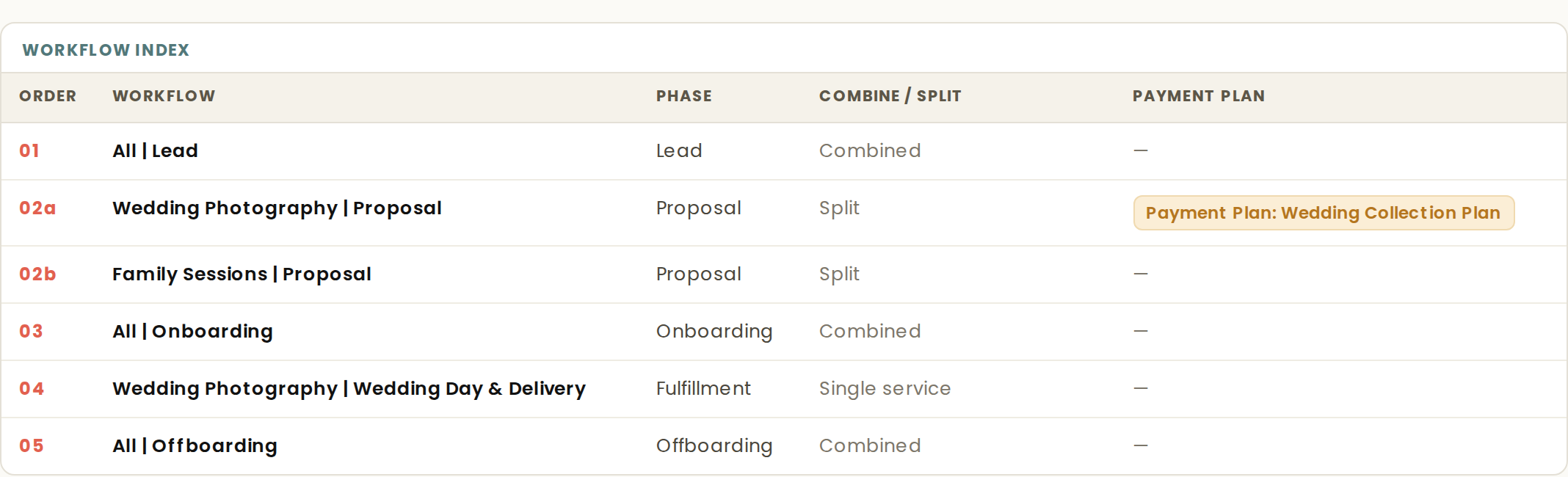
For each workflow, the index shows the services it serves, where each service enters the workflow, its combine or split decision, and its payment plan. The decisions that shaped your map are stated here, not hidden.
Columns that do not apply to a map hide themselves. The Payment Plan column appears whenever the map has any payment plans, with a dash shown where a plan does not resolve to that workflow.
Workflows: the step tables
Workflows is the full detail. Each workflow opens into a step table showing every step in order, the action it performs, and the trigger that fires it. This is the view you build from: step by step, exactly as it will be entered in Dubsado.
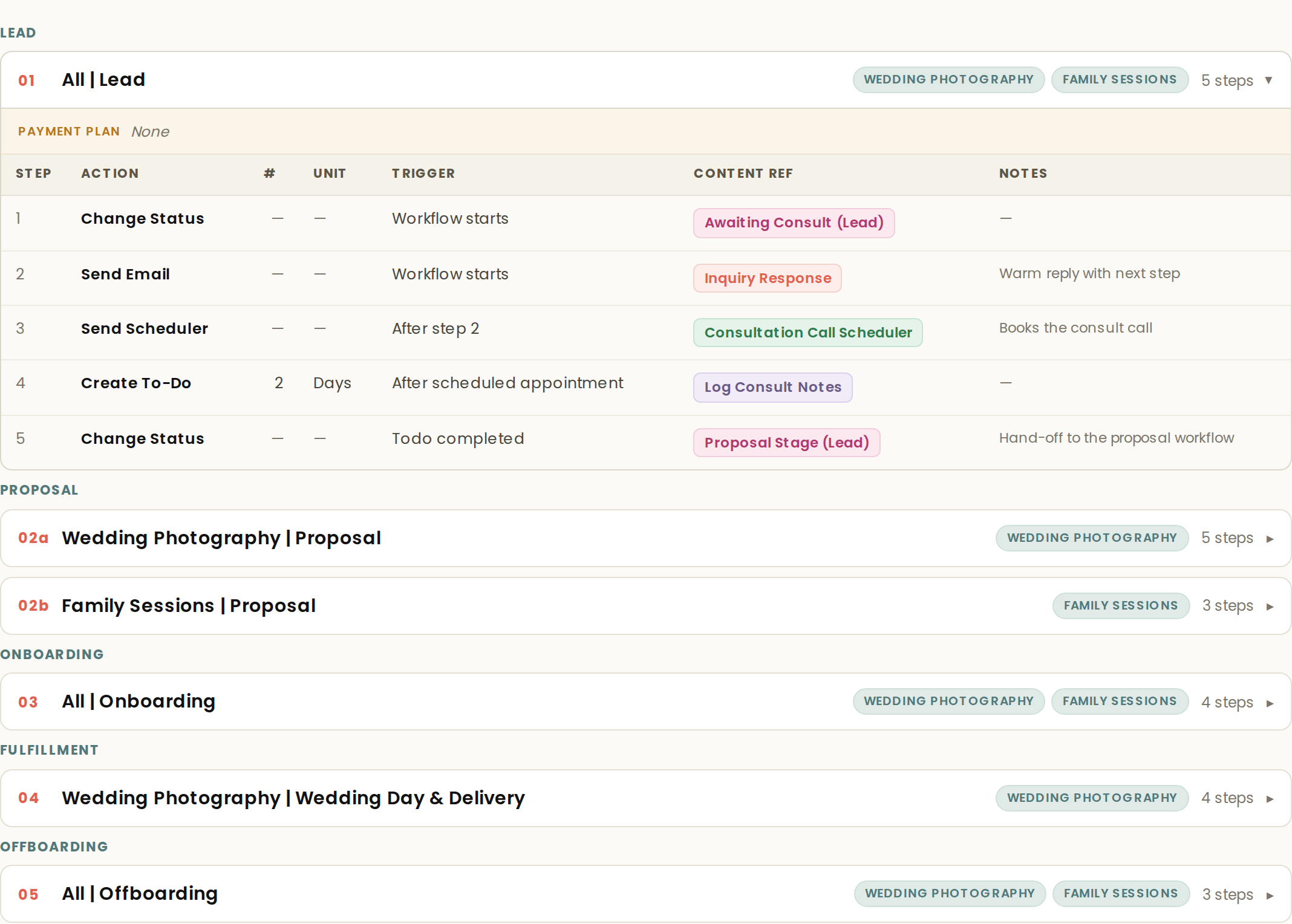
Table and Flowchart
The Workflows tab has two modes, switched with the Table and Flowchart toggle above the workflows. Table is the default, and your choice is remembered on that browser.
Flowchart mode draws each workflow as a vertical chain. The trigger and its timing sit between the steps they connect, so the chain reads the way the workflow runs: this step, then this wait, then this trigger, then the next step.
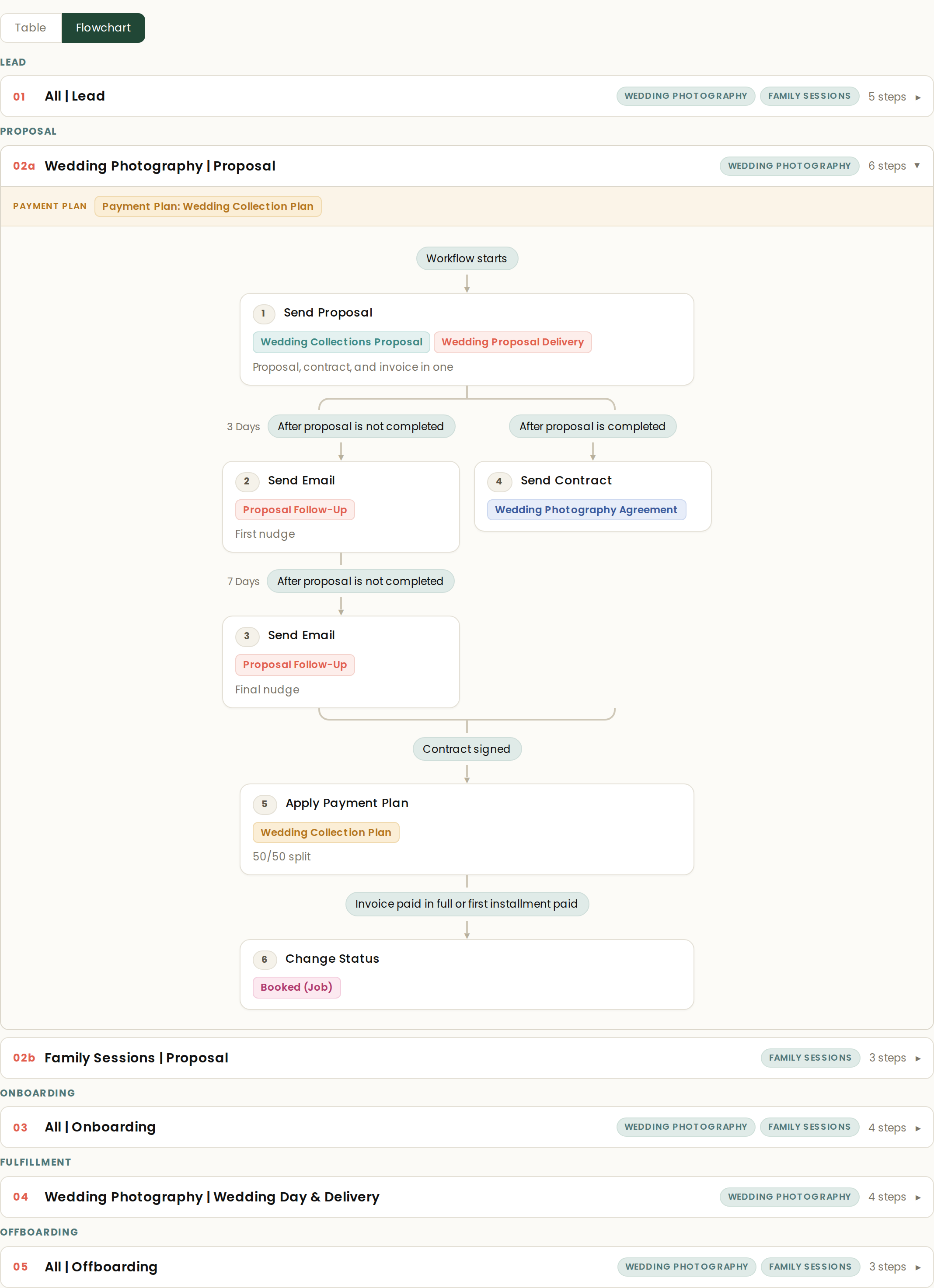
When a workflow branches, completed one way and not completed the other, the flowchart draws the fork: both paths side by side, timing shown ahead of each trigger, then the flow rejoins. What was implicit in the table is visible in the chart.
The two modes show the same map. Phase grouping, service filtering, and payment plan captions behave identically in both.
Moving between them
The two tabs are connected. Clicking a workflow in the index lands you on that workflow in the Workflows tab, so the overview always leads directly to the detail.
Content references inside step tables are clickable. Selecting one opens the asset in a preview without leaving the step you were reading.