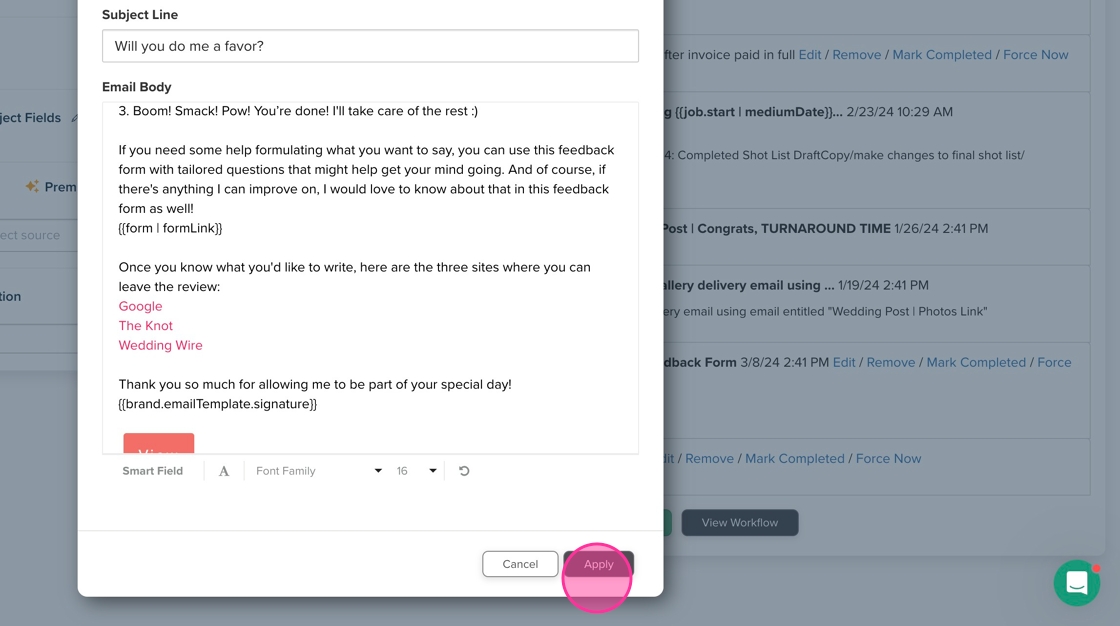
Customize Email & Add Button Link
1. Navigate to https://hello.dubsado.com/dashboard
2. Click "Projects"

3. Navigate to the appropriate project.

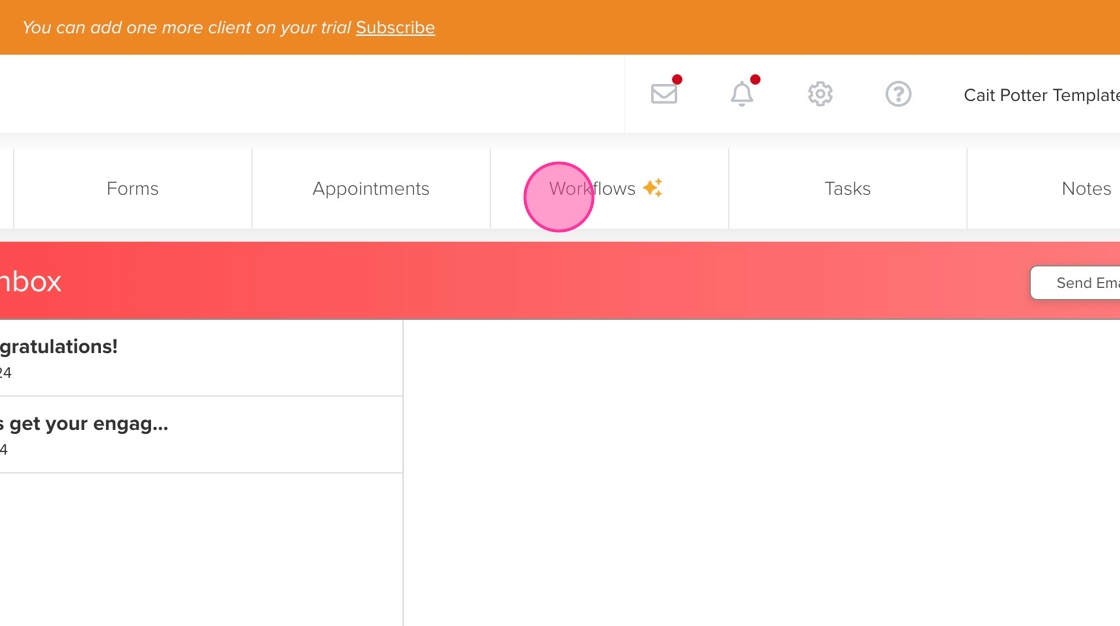
4. Click the "Workflows" tab
5. Locate the email you need to edit. Click "Edit".

6. Go to the appropriate spot in the email to add your link and click.
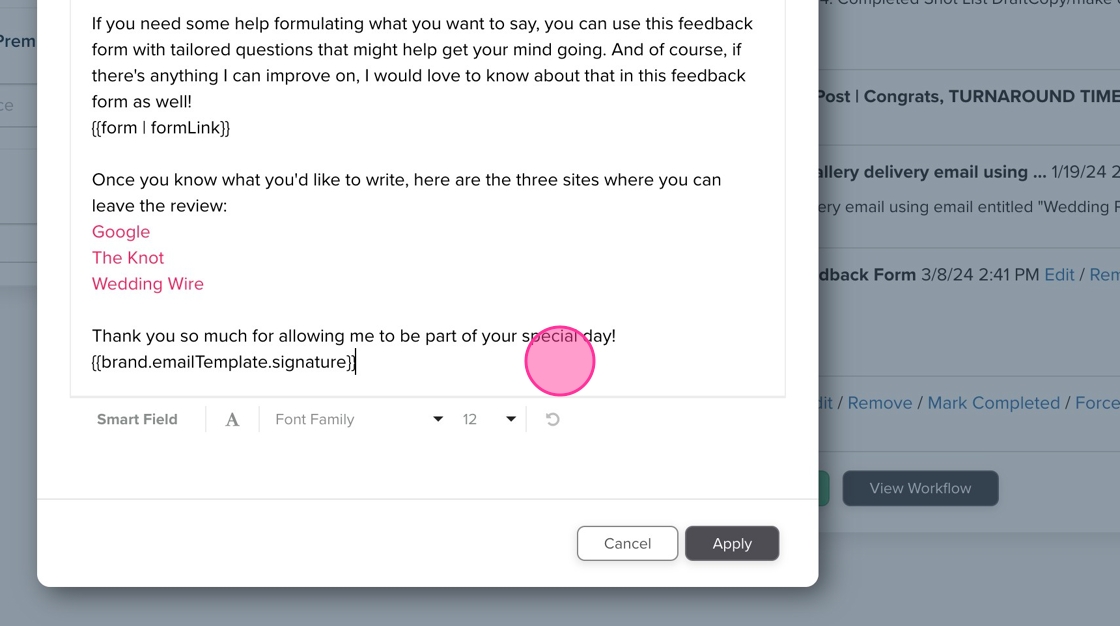
7. Click "Formatting Options"

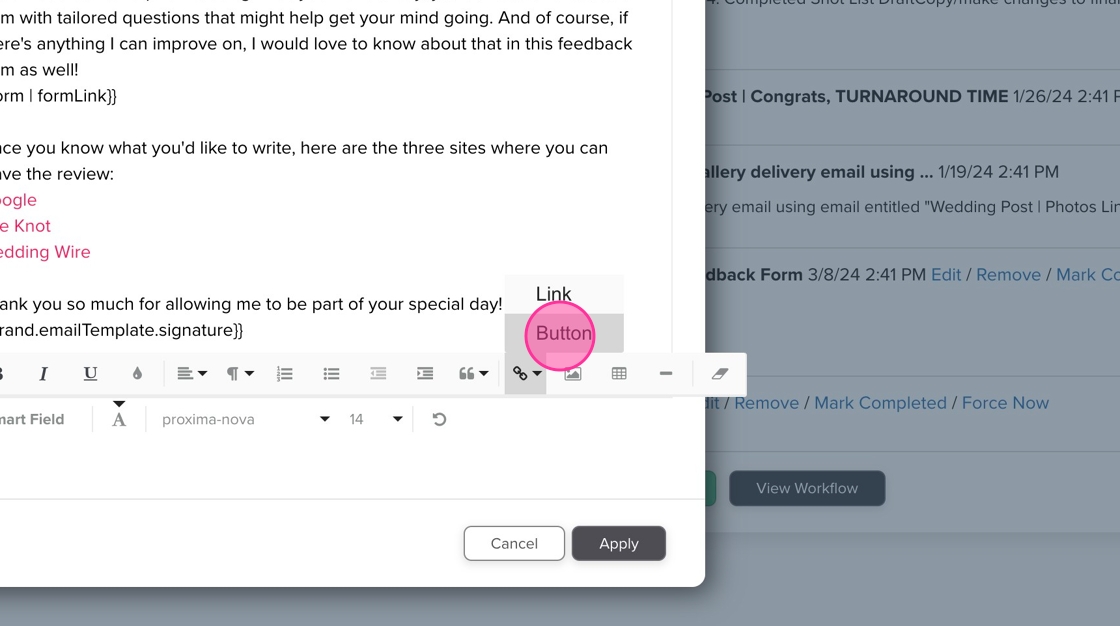
8. Click the 🔗 link button.
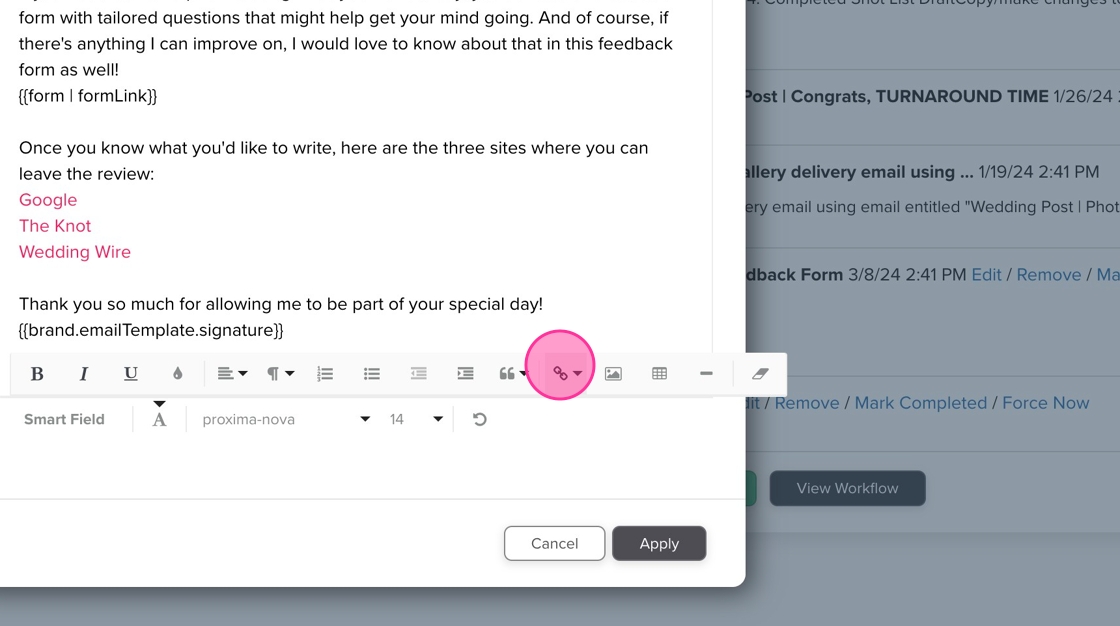
9. Click "Button"
10. Insert your link and the text the client will see.

11. I always recommend selecting the "Open in new tab" option, but that's your choice!

12. Click "Insert"

13. Click "Apply"